OMCA Member Mobile App
The OMCA Member App is officially ready for use! Please take a moment to download it using the following links.
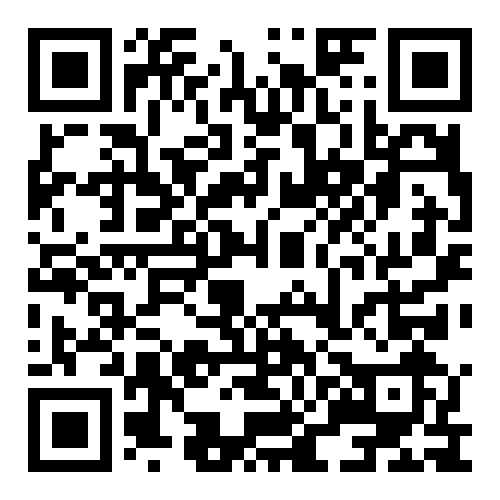
IPhone Download
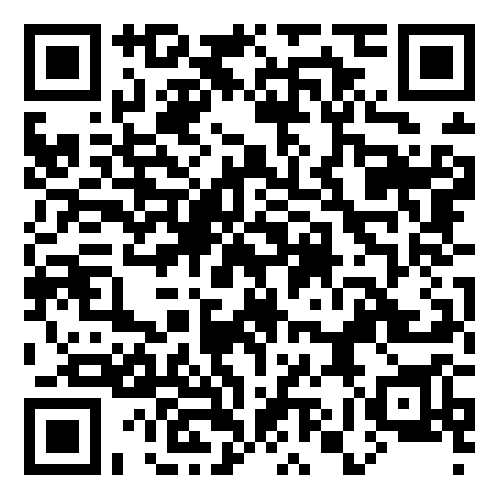
Android Download
Why you need this app:
- Stay Connected Anywhere – Access OMCA resources, updates, and member information anytime, from any device.
- Member Directory on Demand – Easily search and connect with other OMCA members without digging through emails or websites.
- Profile Management – Manage your profile and membership resources in one place
- Save Time – Find the information you need quickly, reducing time spent searching for resources or contacts.
- Invoices Made Easy – View and pay invoices quickly and securely
- Member Toolkit Access – Access the Member Toolkit quickly and easily
Watch the Video Tutorial
Learn everything there is to know about using the app.
- Log in and Dashboard overview – 0:00
- Member search – 1:56
- View & pay invoices – 3:23
- Update profile resource – 3:31
- View & update Company Profile – 4:07
- View & update Personal Overview – 4:44
- Member Tool Kit – 4:54
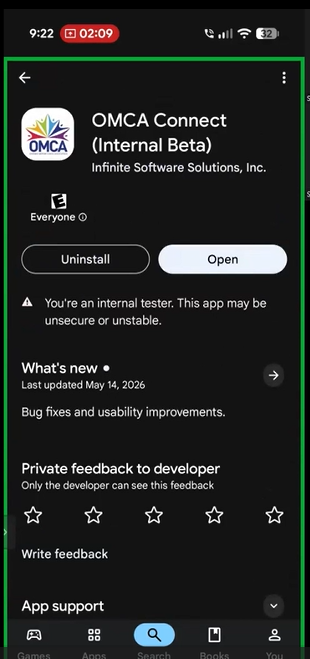
To download the OMCA COnnect Mobile App, go to your App Store (iPhone) or Play Store (Android) and search for OMCA Connect.
You will see OMCA Connect as the top option – select that and download it to your phone.
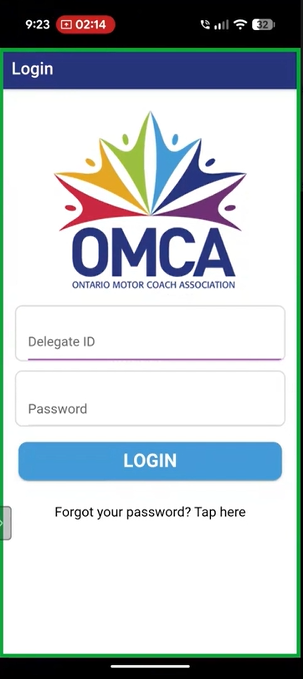
You will be required to log in to the app with your OMCA personal credentials. These are the same credentials that you use to access the MyOMCA Event Portal and Member Portal.
Once you have logged in once, you will not be asked to log in again unless you purposely log out or remove the app from your phone.
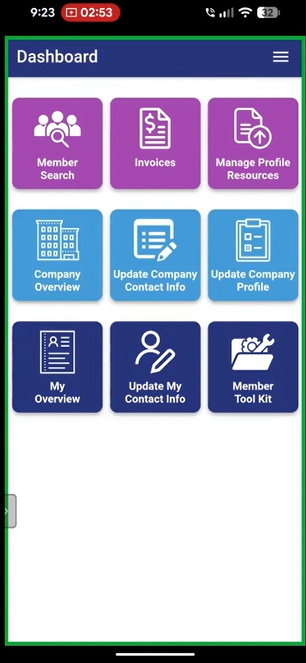
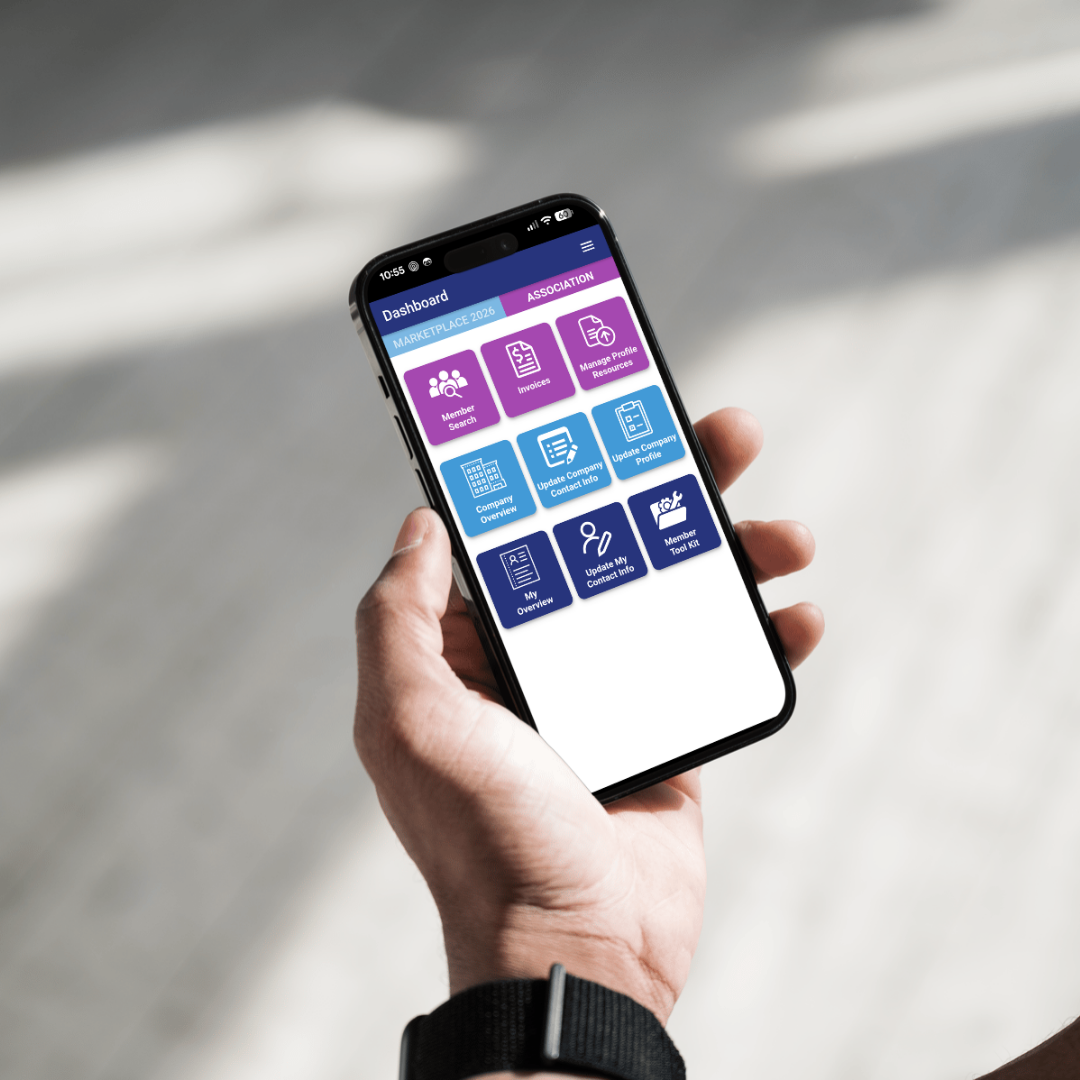
Once you see this dashboard, you are logged in.
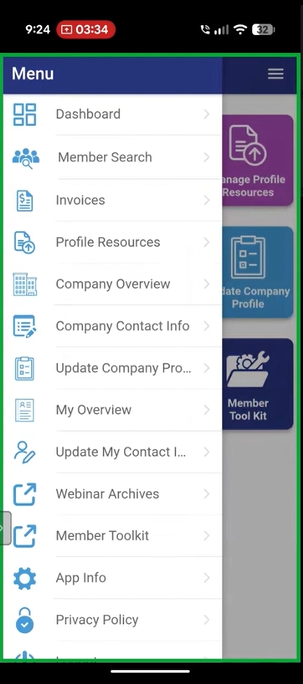
This is your menu, accessible by tapping the three lines in the top right corner. All the information that you need is right here.
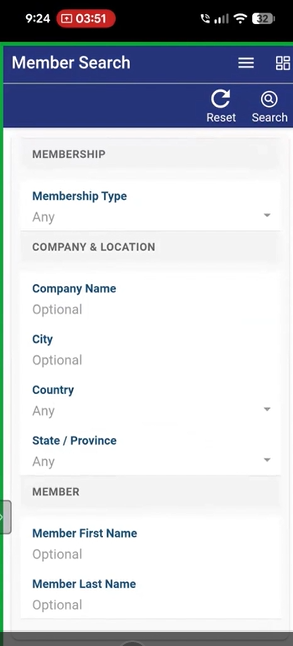
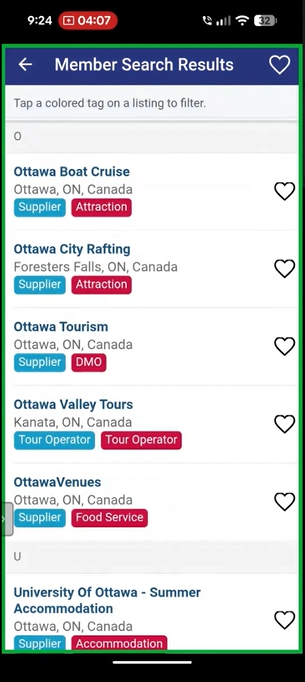
To use the member search, enter what you are looking for here and then press Search in the top right corner.
After completing a member search, you can add companies to your favourites by pressing the heart on the right next to their name.